
What Does Collate Mean? A Complete Guide to Printing Like a Pro
What does collate mean is one of those questions that stops people mid-print job. You’re about to print 10 copies of a 20-page report. You see a tiny checkbox labeled “Collate” and you hesitate. You guess and you end up with a chaotic stack of papers you have to sort by hand.
Sound familiar? You’re not alone.
This guide breaks down exactly what collate means — in printing, on printers, and in everyday settings. You’ll also learn when to use it, when to skip it, and how it saves you serious time.
What Does Collate Mean? The Simple Definition
Collate means to arrange or organize items in a specific, logical order.
In everyday English, it means putting things together in sequence. Think of a librarian sorting books. Or a teacher organizing test papers by student name. That’s collating.
But most people encounter this word in one place: the print dialog box.
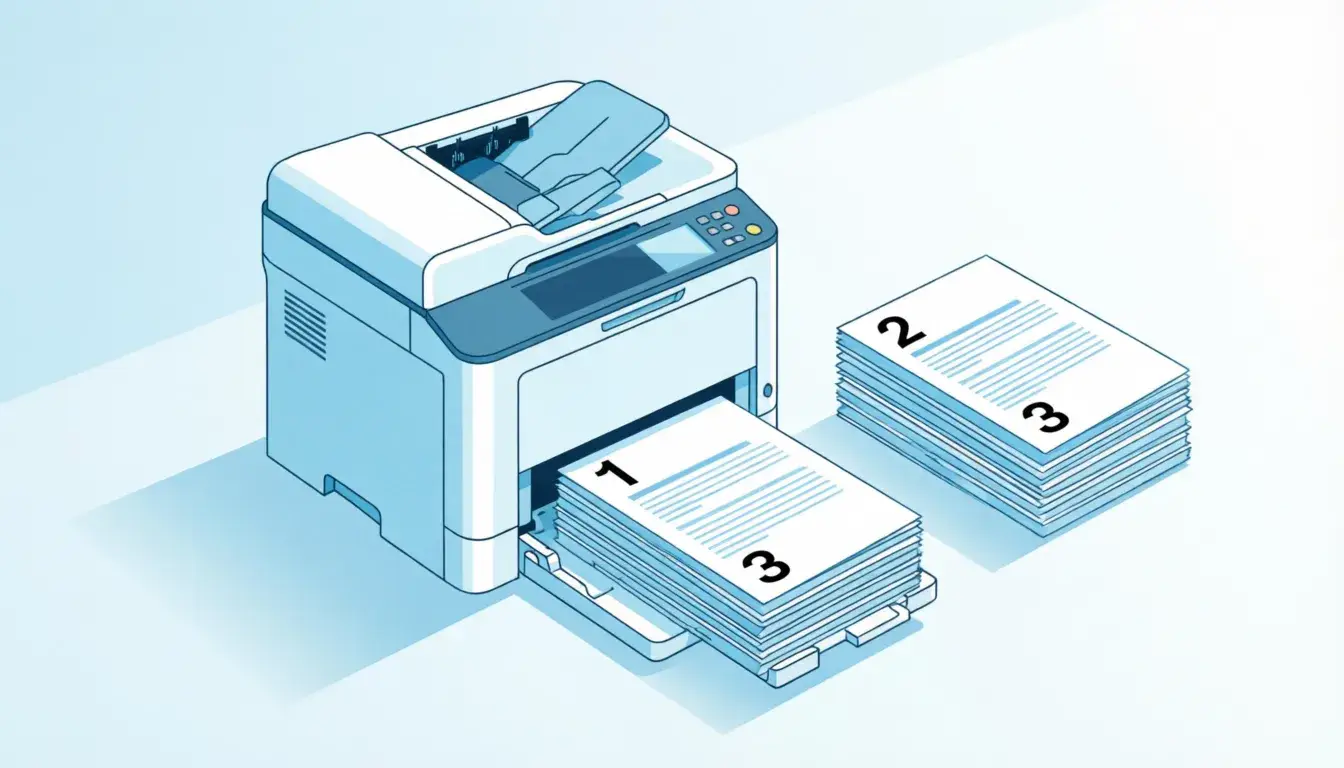
So what does collate mean when printing? It means your printer automatically sorts multiple copies of a multi-page document into complete, ordered sets.
The Printing Breakdown
Say you’re printing 3 copies of a 5-page document.
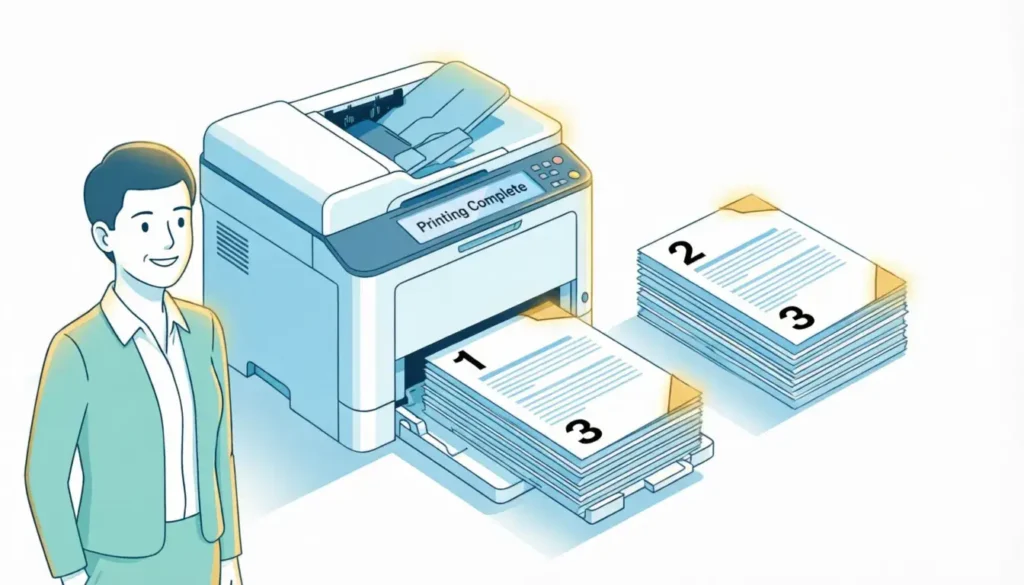
With collate ON: You get — 1,2,3,4,5 / 1,2,3,4,5 / 1,2,3,4,5
With collate OFF: You get — 1,1,1 / 2,2,2 / 3,3,3 / 4,4,4 / 5,5,5
See the difference? Collate ON means each copy is complete and ready to hand out. Collate OFF means you have to manually sort three separate piles into order.
What Does Collate Mean on a Printer? Where to Find It
Every printer handles this slightly differently. But the option usually appears in the same places.
In the Print Dialog Box
- Press Ctrl + P (Windows) or Cmd + P (Mac)
- Look for Copies near the top
- Just below or beside it, you’ll see a Collate checkbox or toggle
- Check it to collate. Uncheck to print page-by-page
In Printer Settings
On some systems, you find it under:
- Print Properties → Finishing tab
- Advanced Settings → Output
- Printer Preferences → Copy tab
The label might say “Collated,” “Sort Copies,” or “Ordered Sets.” All mean the same thing.
On Physical Photocopiers
Office copiers often have a Collate button on the control panel. Press it once to toggle on or off. A light or indicator shows the current setting.
What Does Collate Mean When Printing Multiple Copies?
This is where collate really earns its keep.
Imagine printing 50 copies of a 10-page employee handbook. Without collate, you’d print 50 page-ones, then 50 page-twos, and so on. Then someone has to manually assemble 50 complete handbooks. That’s 500 page-flips of boring, error-prone work.
With collate on, the printer does all that automatically. It prints one complete handbook, then another, then another. Each set comes out fully assembled.
When Collate Saves the Most Time
| Scenario | Copies | Pages | Manual Sort Without Collate |
|---|---|---|---|
| Meeting agenda | 15 | 4 | 60 page sorts |
| Employee handbook | 50 | 10 | 500 page sorts |
| Training manual | 100 | 25 | 2,500 page sorts |
| Event program | 200 | 8 | 1,600 page sorts |
The bigger your print job, the more collate matters.
What Does Collate Mean When Printing Double-Sided?
Double-sided (duplex) printing adds a layer of complexity. What does collate mean when printing double-sided? It means the printer keeps the page order intact even when flipping the paper.
Without collate on a double-sided job, the pages can come out mismatched. Your reader might open to page 3 on the front and page 7 on the back. Confusing and unprofessional.
What Does Collate Mean When Printing Double-Sided Pages?
With collate enabled on a duplex job:
- Page 1 prints on front, Page 2 on back of same sheet
- Page 3 on front of next sheet, Page 4 on back
- This continues through the entire document
- Each copy comes out as a properly ordered booklet
Pro tip: Always enable collate when printing double-sided multi-page documents. It prevents costly and embarrassing page order mistakes.
Collate vs. No Collate: Which Should You Choose?
Here’s a clear comparison to help you decide instantly.
| Setting | Best For | Result |
|---|---|---|
| Collate ON | Reports, booklets, handouts, manuals | Complete, ordered sets per copy |
| Collate OFF | Flyers, single-page documents, batch sorting | All copies of each page grouped together |
Use Collate ON When:
- Printing multi-page documents with multiple copies
- Creating handouts for meetings or classes
- Printing instruction manuals or guides
- Any time readers need pages in order
Use Collate OFF When:
- Printing single-page flyers in bulk
- You need to manually sort pages into specific custom orders
- Pages will be cut, folded, or reassembled differently
- You’re printing from a slow printer and want it to buffer more efficiently (rare)
What Does Collate Mean on Printer Settings for Different Software?
Different programs show the collate option in slightly different ways. Here’s a quick reference.
Microsoft Word
- File → Print
- Under “Copies,” check the Collated checkbox
- It’s on by default for multi-page docs
Google Docs
- File → Print
- More settings → Paper size and handling
- Look for Collate pages option
Adobe Acrobat
- File → Print
- Under “Copies,” toggle Collate
- Preview on the right shows your sort order
Mac (Any Application)
- File → Print
- Click Show Details
- Copies & Pages section shows the Collate checkbox
Windows 10/11 System Print Dialog
- Settings → Printers & Scanners → Open print queue
- Or press Ctrl + P from any app
- Under Copies, the Collate toggle is right below the number field
Common Mistakes People Make With Collate
Even experienced users mess this up. Here are the most common errors and how to fix them.
Mistake 1: Leaving Collate Off for Multi-Page Jobs
You print 20 copies of a 15-page report. You get 300 loose pages in random piles. Now someone spends an hour sorting. Always check collate is ON before printing multiple copies of anything longer than one page.
Mistake 2: Using Collate ON for Single-Page Documents
If you’re printing 100 copies of a one-page flyer, collate doesn’t matter. It won’t hurt, but it adds no value. For single-page jobs, just set your copy count and print.
Mistake 3: Forgetting Collate on Double-Sided Jobs
This one causes real headaches. Double-sided printing without collate creates documents where the front and back of pages don’t match. Always pair duplex printing with collate ON.
Mistake 4: Not Checking the Preview
Most print dialogs show a small thumbnail preview. A quick glance tells you if collate is working correctly. You’ll see “Copy 1: pages 1-5” then “Copy 2: pages 1-5” instead of “Page 1: copies 1-5.”
Real-World Examples of Collate in Action
Understanding just isn’t enough sometimes. Here are real scenarios where collate makes all the difference.
School teacher: Printing 30 copies of a 6-page quiz. Collate ON means each student gets a complete quiz packet. Collate OFF means 30 minutes of sorting before class. Just like learning the meaning of abbreviations (for example, what does NP mean in online conversations) saves confusion, knowing collate saves real time.
Small business owner: Printing 25 copies of a product catalog with 12 pages. Collate ON means 25 ready-to-distribute catalogs come out of the printer. No assembly required.
HR manager: Onboarding 10 new employees. Each gets an 8-page welcome packet. Collate ON handles it automatically. The same way understanding modern shorthand like what does JFC mean helps you communicate faster, knowing your printer settings helps you work smarter.
Event planner: Printing 200 copies of a 4-page event program. Without collate, that’s 800 pages to manually assemble. With collate, it’s done before the coffee gets cold.
Does Collate Slow Down Printing?
Sometimes. Here’s the honest answer.
Collate can slightly slow down printing on older or budget printers. Why? Because the printer processes the entire document sequentially for each copy, rather than repeating a single page at high speed.
Modern laser and inkjet printers handle this efficiently. The difference in time is usually minimal — a few seconds per copy at most.
Worth it? Almost always yes. Saving 30 minutes of manual sorting is worth 2 extra minutes of printing.
On networked office printers, collate performance is nearly identical to non-collated jobs. The printer’s internal memory handles the sorting seamlessly.
Just like decoding internet slang — what does SMD mean or what does WTW mean — understanding your tools means you spend less time confused and more time productive.
Frequently Asked Questions
What does collate mean when printing multiple copies?
When printing multiple copies, collate means your printer outputs complete sets in order. Instead of printing all copies of page 1, then all copies of page 2, it prints pages 1 through the last page, then repeats for each additional copy. This saves you from manually sorting stacks of loose pages.
What does collate mean on printer settings specifically?
On printer settings, collate is a toggle (checkbox or button) that controls page sort order for multi-copy jobs. When ON, each copy comes out fully assembled in order. When OFF, all copies of each individual page are grouped together. Find it in the Print dialog under Copies.
What does collate mean when printing double-sided documents?
For double-sided printing, collate ensures each sheet has the correct front and back pages. Without it, double-sided copies can have mismatched page pairings. Always enable collate when printing duplex multi-page documents to avoid scrambled page orders.
Does collate affect print quality?
No. Collate only changes the order pages come out of the printer. It has zero effect on resolution, color accuracy, or print quality. The same ink and paper settings apply regardless of collate status.
When should I turn collate OFF?
Turn collate OFF when printing single-page documents, when you want to inspect each page before the next prints, or when you need to manually insert different paper types between specific pages. For most standard multi-page print jobs, leave it ON.
Is collate the same on all printers?
The function is identical across all printers, but the label may differ. You might see “Collate,” “Sort Copies,” “Ordered Sets,” or “Group Pages.” They all mean the same thing — assembling copies in sequential page order. Check your printer’s manual if you can’t locate the option. You can also explore word meanings and digital communication shortcuts like what does OFC mean, what does KMS mean, what does rizz mean, what does FYM mean, and what does GMFU mean to sharpen your everyday vocabulary.
Conclusion
Now you know exactly what does collate mean — and why it matters more than most people realize.
Here are the key takeaways:
- Collate ON = complete, ordered copies come out of the printer ready to use
- Collate OFF = all copies of each individual page are grouped separately
- Always use collate for multi-page, multi-copy documents
- Always pair collate with double-sided printing to avoid page chaos
- It rarely slows printing noticeably, but saves massive manual sorting time
Next time you see that collate checkbox, you won’t guess. You’ll know exactly what to do — and why.
Check your printer settings before your next big print job. One small checkbox makes a massive difference.